Start a session
Start a session to run a harness on a task in your project. Make sure you have installed a harness first.
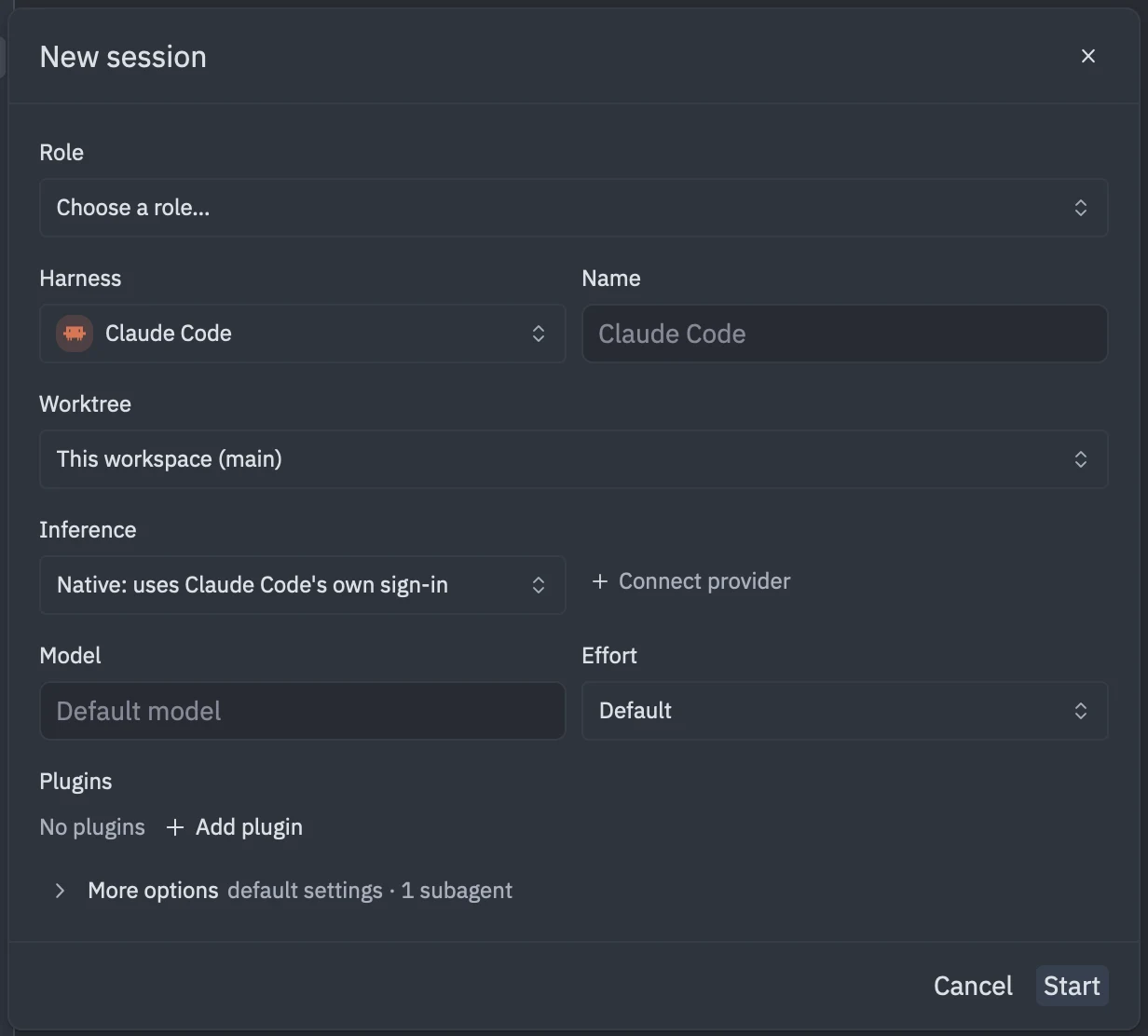
Open the form
Any of these opens the “New session” form:
- Click + next to Agents in the sidebar (“New agent”).
- Run
tyrn: new sessionfrom the command palette. - Choose New Agent Here on a worktree’s menu.
Fill it in
| Field | What it does |
|---|---|
| Role | Optional. Start from a saved role. |
| Harness | Which agent to run. “Install more harnesses…” opens the harness list. |
| Name | Optional, up to 80 characters. |
| Worktree | “This workspace (branch)”, an existing worktree, or “New worktree…”. See Run sessions in parallel. |
| Inference | “Native: uses <Harness>’s own sign-in”, or Tyrn router. Connect provider takes you to settings. |
| Model, Effort | With Native, type a model or keep the harness default, and pick the effort. With Tyrn router, pick from the models you connected. |
| Plugins | Choose which plugins to load for this session. Add plugin adds one. |
| More options | Advanced harness settings and the Subagents to load. Collapsed, it shows a summary such as “default settings · 1 subagent”. |
Some harnesses can’t use the Tyrn router. The form then says “<Harness> does not support Tyrn router inference” and gives the reason. The form can also show notes about how completely a harness is isolated from your global setup.
Start
Click Start, or press Enter. The session opens in a tab and appears under Agents.
Other ways to open a session
tyrn: open terminalopens the first installed harness.tyrn: open shell terminalopens a plain shell, shown as “Shell”.tyrn: attach sessionattaches to a session that is already running.
Change settings later
Use Restart with New Settings… on a session to restart it with changed options.