Quickstart
This walks you from a fresh install to a running agent session. You need Tyrn installed.
-
Open a project.
Click + next to Projects in the sidebar and choose a folder. A project can be open in only one window at a time.
-
Connect a model, or use a harness’s own sign-in.
You have two options:
- Use Native inference, where the harness uses its own sign-in. Sign in inside the harness the way you normally would.
- Connect a model in Tyrn so the Tyrn router can use it. Open Settings > Inference and pick Subscriptions, Usage-based or Local. See Connect a model.
-
Install a harness.
Open Settings > Agents > Harnesses, find a harness under Available and click Install. Tyrn installs a tested version for you. You can also choose “Install more harnesses…” from the session form.
-
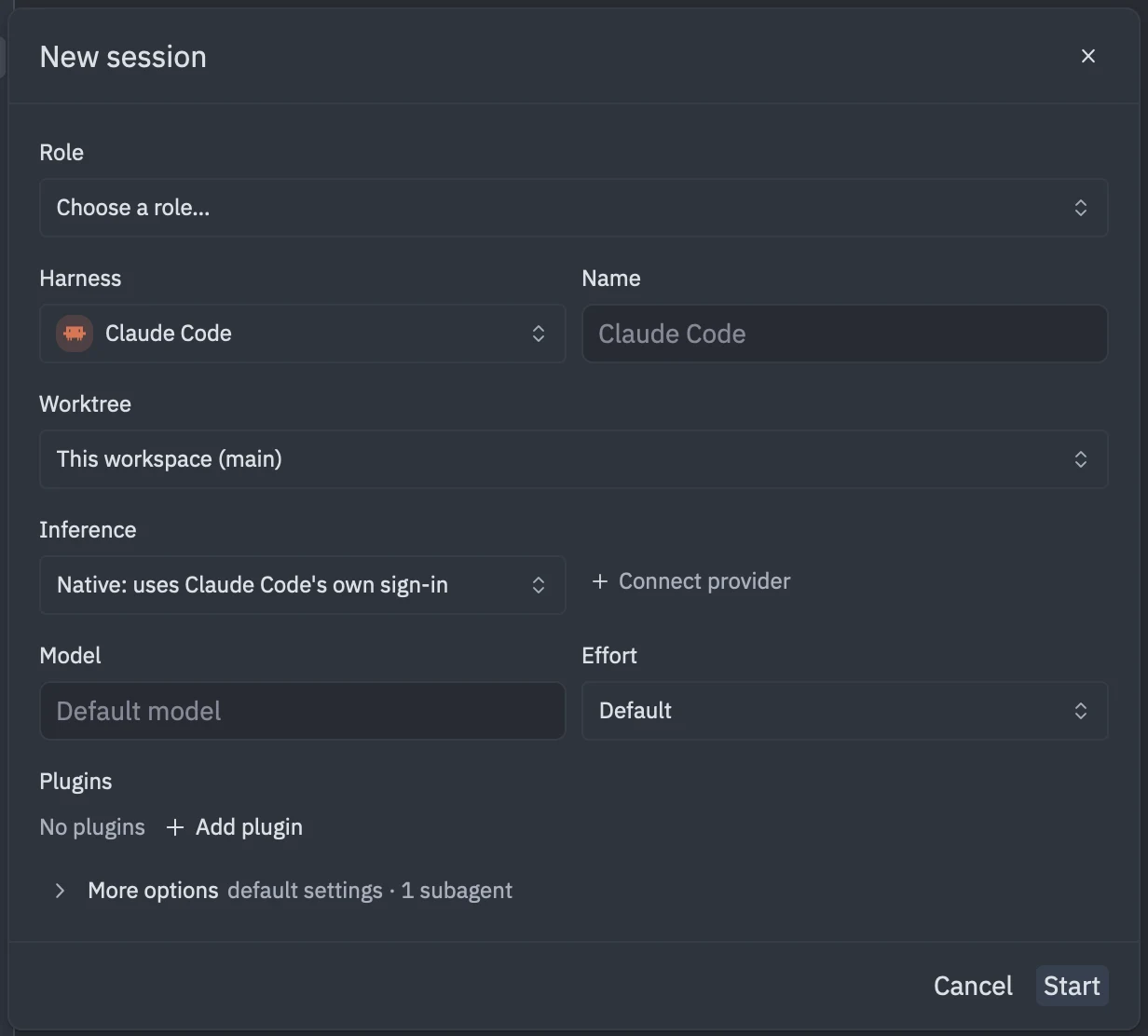
Start a session.
Click + next to Agents (“New agent”). In the “New session” form, pick a Harness, choose Native or Tyrn router under Inference, pick a model, then click Start.
-
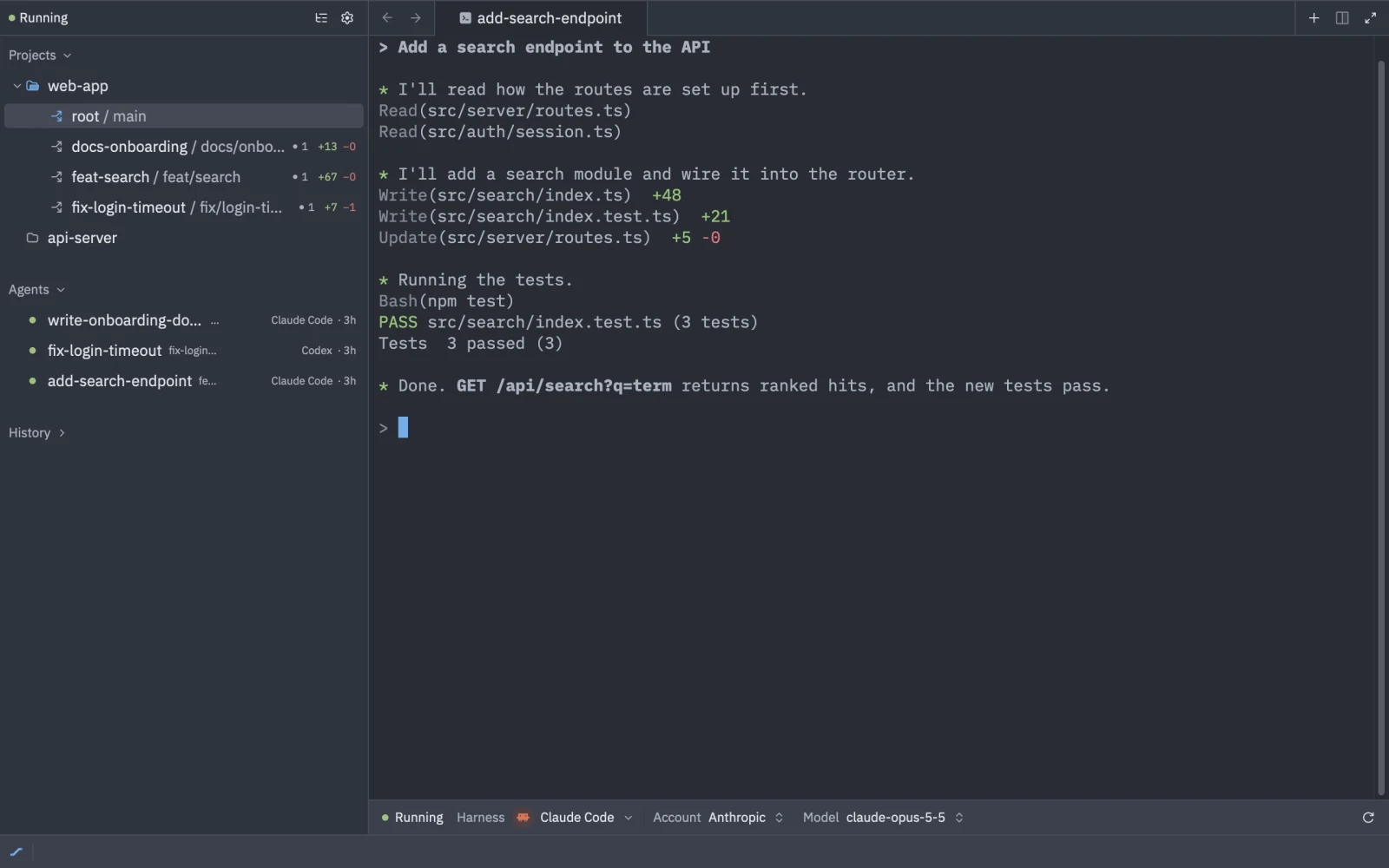
Watch it work and review changes.
Give the agent a task in its tab. The sidebar lists it under Agents. When it edits files, review the changes in the editor and the Git panel like any other change in your project.
-
Close the window and come back.
Sessions run in the Tyrn backend, so closing the window or quitting Tyrn doesn’t stop them. Reopen Tyrn and the session is still listed under Agents. Attach to it to keep going.
Next steps
- Start a session covers every field in the form.
- Run sessions in parallel with worktrees.
- Resume a session after closing the window.