Autocomplete
Autocomplete suggests code as you type, using a model from Tyrn router. It is off until you turn it on and choose a model. Open Settings > Agents > Autocomplete.
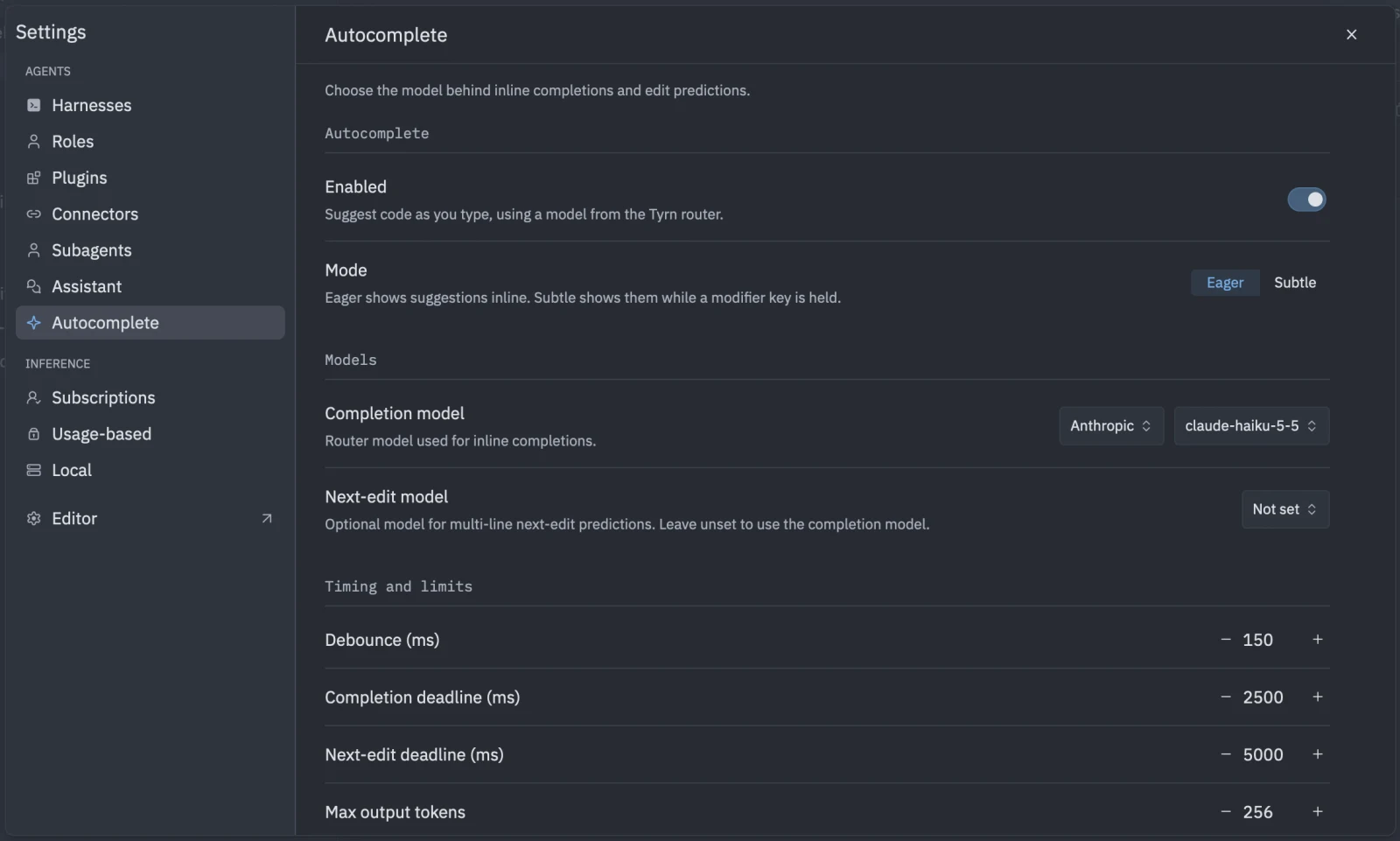
Turn it on
- Connect a model first. See Connect a model.
- Open Settings > Agents > Autocomplete.
- Under Models, pick the model for completions.
- Turn on Enabled.
The setting behind this is edit_predictions.provider, which is tyrn when on and none (the default) when off.
Accept a suggestion
Press Tab to accept. Alt-Tab also accepts.
Mode
Under Autocomplete, choose how suggestions appear.
- Eager (default): suggestions appear inline.
- Subtle: suggestions appear while you hold a modifier key.
Models
- The first model is the router model used for inline completions (
model). - The optional second model is for multi-line next-edit predictions (
next_edit_model). Leave it unset to use the completion model.
Timing and limits
| Setting | Default | Meaning |
|---|---|---|
max_output_tokens |
256 | Longest suggestion. |
debounce_ms |
150 | Wait after you stop typing. |
deadline_ms |
2500 | Give up on a completion after this long. |
next_edit_deadline_ms |
5000 | Same, for next-edit predictions. |
Exclusions
Files matching an exclusion are never sent for autocomplete. Add your own with Add exclusion. By default Tyrn keeps out .env*, *.pem, *.key, *.cert, *.crt, .dev.vars, secrets.yml and Tyrn settings and keymap files.
Settings
{ "edit_predictions": { "provider": "tyrn", "mode": "eager", "tyrn": { "model": "provider/model", "next_edit_model": null, "max_output_tokens": 256, "debounce_ms": 150, "deadline_ms": 2500, "next_edit_deadline_ms": 5000 } }}Replace provider/model with a model from a connection you added. Model ids appear exactly as the provider names them.