Local models
Point Tyrn at a model server on your Mac or your network. Open Settings > Inference > Local. The page says “Use models running on your machine or network, like Ollama or LM Studio.” Most local servers need no key.
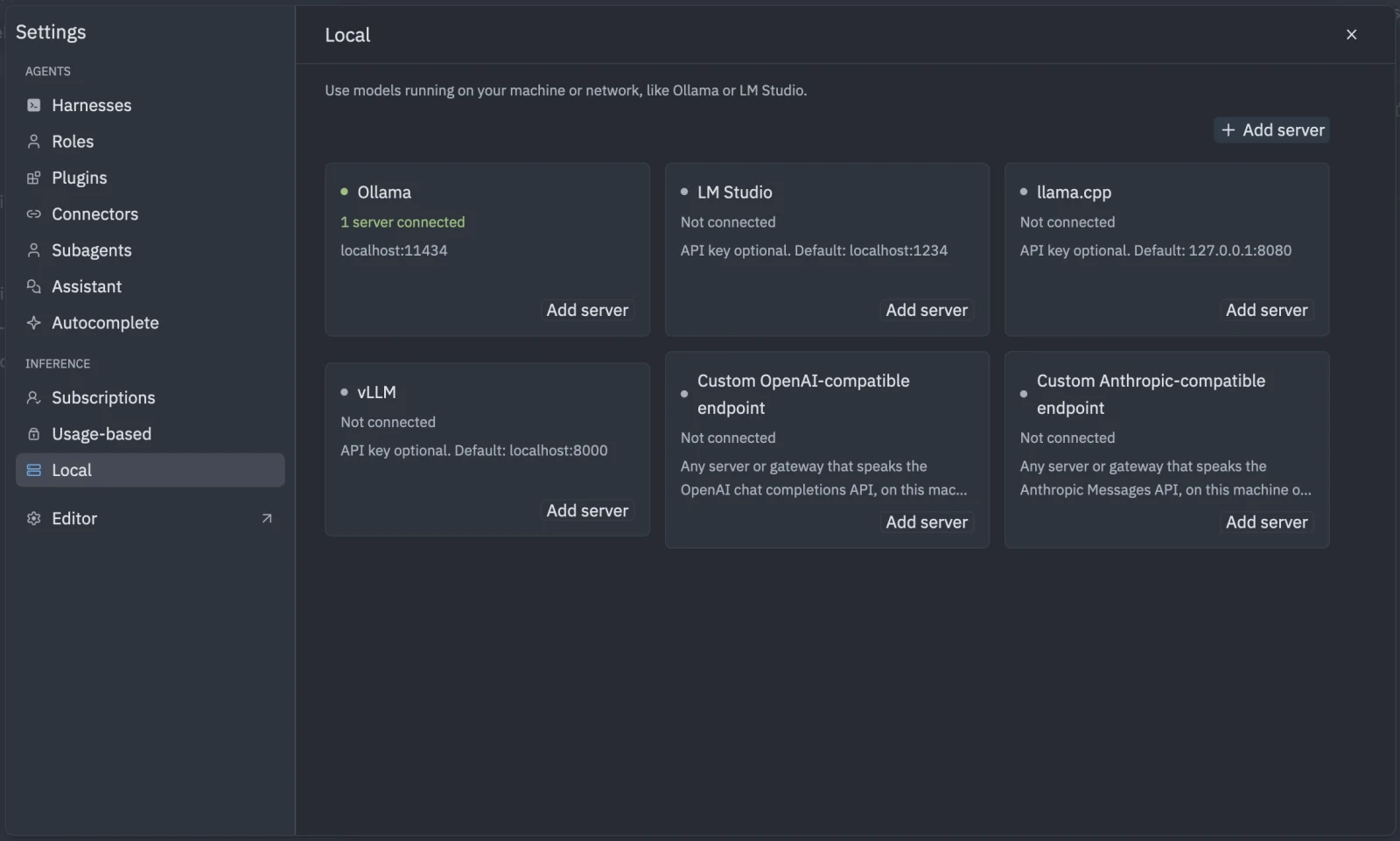
Add a server
- Start your model server.
- Open Settings > Inference > Local and click Add server.
- Choose a Server type. The Base URL fills in with the default address.
- Add an API key (optional) if your server needs one.
- Leave Active on. Inactive servers are skipped by Tyrn router.
- Save. Tyrn tests the server and reports the models it found, for example “Connected. 2 models: a, b.”
Presets
| Server type | Default address |
|---|---|
| Ollama | http://localhost:11434/v1 |
| LM Studio | http://localhost:1234/v1 |
| vLLM | http://localhost:8000/v1 |
| llama.cpp | http://127.0.0.1:8080/v1 |
| Llamafile | http://127.0.0.1:8080/v1 |
| Lemonade Server | http://localhost:13305/api/v1 |
| NVIDIA Triton | http://localhost:8000/v1 |
| Docker Model Runner | http://localhost:12434/v1 |
| XInference | http://localhost:9997/v1 |
| oobabooga | http://localhost:5000/v1 |
| MLX Gemma 26B | http://localhost:11435/v1 |
| MLX Qwen 3.8 27B | http://localhost:11436/v1 |
Custom endpoint
For any other server or gateway, choose Custom OpenAI-compatible endpoint or Custom Anthropic-compatible endpoint. Give it a name and a base URL such as https://host:port/v1. It can run on this machine or your network.
Use a local model
Pick it in a session whose Inference is Tyrn router. See Start a session. Model ids appear exactly as the server reports them.
If a server is not running, adding it fails with a message from the test. Start the server and try again.